Every time you go online, you leave a trail. Your Internet provider can see which sites you visit, websites can log your IP address and approximate location, and advertisers stitch together profiles from cookies and browser fingerprints. If you want to take back some of that privacy, the TOR Browser is one of the most powerful free tools available.
This beginner-friendly guide explains what the TOR Browser is, how it works, and how to download, install, and use it safely, step by step. By the end, you'll know how to browse privately, get around censorship, and avoid the common mistakes that undo TOR's protection.
What is the TOR Browser?
The TOR Browser is a free, open-source web browser built to protect your privacy and anonymity online. It is developed by The TOR Project, a US-based nonprofit, and is based on Mozilla Firefox (Extended Support Release), so it looks and feels familiar.
The name "TOR" originally stood for The Onion Router, a nod to the layered encryption at the heart of the network. Unlike a regular browser, TOR Browser sends your traffic through a worldwide network of volunteer-run servers called relays, which hides your real IP address from the websites you visit and hides the websites you visit from your Internet provider.
The TOR Browser is available for Windows, macOS, Linux, and Android. On iPhone and iPad, the TOR Project recommends Onion Browser, a separate app that also routes traffic over TOR.
People use TOR for many legitimate reasons:
- Journalists and their sources protecting confidential communication
- Activists and citizens in censored countries reaching blocked news and social media
- Privacy-conscious users who don't want to be tracked by advertisers or data brokers
- Researchers and security professionals studying threats without revealing their identity
- Survivors of abuse looking up help without leaving a trail on a shared network
How Does TOR Work? Onion Routing Explained
When you load a website in TOR Browser, your request doesn't travel directly to the site. Instead, TOR builds a circuit through at least three randomly chosen relays:
- Guard (entry) relay: knows your IP address, but not where you're going.
- Middle relay: passes traffic along and knows neither you nor your destination.
- Exit relay: connects to the website, but doesn't know who you are.
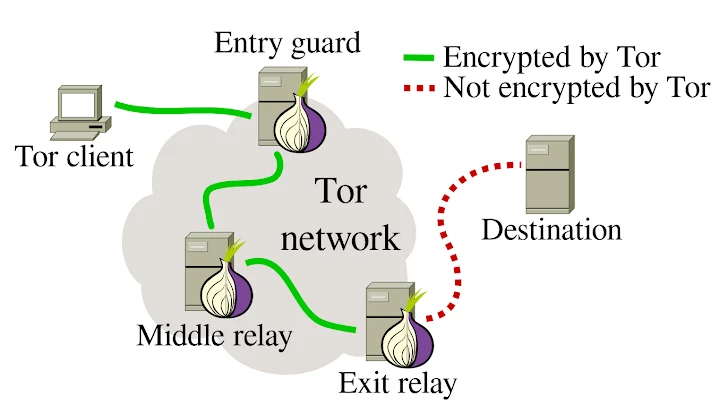
Before your data leaves your computer, TOR wraps it in three layers of encryption, one for each relay, like the layers of an onion. Each relay peels off just one layer, learning only the previous and next hop. No single relay knows both who you are and what you're accessing.
TOR Browser also helps defeat tracking at the browser level. It isolates each website so third-party trackers can't follow you across sites, clears cookies and history when you close it, and makes all users look as alike as possible to resist browser fingerprinting.
Good to know: TOR encrypts traffic within the network, but the hop from the exit relay to the website is only encrypted if the site uses HTTPS. TOR Browser enables HTTPS-Only mode by default to help with this.
Is the TOR Browser Legal and Safe?
In most countries, including the United States, the UK, and the European Union, using TOR is completely legal. Anonymity tools are widely used by governments, businesses, and the press. What remains illegal is the same as on the regular Internet: illegal activity is illegal whether or not you use TOR.
A few countries restrict or actively block TOR, so check your local laws. In censored regions, TOR's bridges (covered below) can help you connect.
As for safety, the TOR Browser is one of the most scrutinized privacy tools in the world, but it isn't magic. Its protection depends on how you use it. The best practices section below covers how to avoid the most common mistakes.
How to Use the TOR Browser: A Step-by-Step Guide
Step 1: Download the TOR Browser from the Official Website
Go to the official download page at torproject.org/download and pick the version for your operating system. On Android, you can also install it from Google Play or F-Droid (through the Guardian Project repository).
Only download TOR Browser from the official site or official app stores. Fake "TOR" downloads are a common way to spread malware. If torproject.org is blocked where you live, you can request a download link by emailing gettor@torproject.org, or use an official mirror listed by the TOR Project.
Optional but recommended: Verify the download's digital signature. The TOR Project publishes a signature (.asc) file for every release, along with instructions for checking it with GnuPG. This confirms the file hasn't been tampered with.
Step 2: Install the TOR Browser
Installation is quick on every platform:
- Windows: Run the downloaded .exe file, choose your language and install location, and click Install. The TOR Browser is self-contained, so you can even install it to a USB drive.
- macOS: Open the .dmg file and drag the TOR Browser into your Applications folder.
- Linux: Extract the downloaded archive, open the folder, and run the start-tor-browser.desktop launcher (or register it as an app with
./start-tor-browser.desktop --register-app). - Android: Install from Google Play or F-Droid, then open the app.
Step 3: Launch and Connect to the TOR Network
When you open TOR Browser for the first time, you'll see the Connect to TOR screen.
- Click Connect. The TOR Browser will build a circuit through the network, which usually takes a few seconds.
- Tick Always connect automatically if you want it to connect on every launch.
- Once connected, you'll land on the TOR Browser start page with a search bar (DuckDuckGo is the default search engine).
If the connection fails, the TOR Browser's Connection Assist can detect whether TOR is blocked on your network and suggest the best way to connect.
Step 4: Use Bridges if TOR is Blocked
In some countries, and on some school or workplace networks, access to TOR is blocked. Bridges are unlisted relays that make it harder for censors to detect and block your connection.
To set one up, open Settings → Connection, then choose one of these options:
- Select a built-in bridge: options include obfs4 (disguises TOR traffic as random data), Snowflake (routes traffic through volunteer browsers), and meek (makes traffic look like it's going to a major cloud service).
- Request a bridge from torproject.org: solve a quick CAPTCHA to receive fresh bridges.
- Add a bridge manually: paste bridge addresses you received from bridges.torproject.org, by email, or from a trusted contact.
If you're not sure which to pick, start with Snowflake or obfs4.
Step 5: Choose Your Security Level
Click the shield icon in the toolbar (or go to Settings → Privacy & Security → Security) to pick one of three levels:
Higher levels make some websites look or behave differently, but they significantly reduce the risk of attacks that rely on scripts.
Step 6: Browse Privately, Including .onion Sites
You can now browse just as you would in any other browser. A few TOR-specific features are worth learning:
- The circuit view: click the site information icon to the left of the address bar to see the relays your connection to the current site is using.
- New TOR circuit for this site: if a site is slow or misbehaving, this reloads it through a fresh path.
- New Identity (the broom icon): closes all tabs, clears your session, and starts fresh with new circuits, so nothing you did before can be linked to what you do next.
- Onion services (.onion sites): these are websites hosted inside the TOR network, which keeps both the visitor and the site anonymous. Many reputable organizations run official onion versions of their sites, including major news outlets, DuckDuckGo, and some social networks. The TOR Browser also shows an ".onion available" button when a site you visit offers one.
Tip: Treat .onion addresses with care. They're long, random-looking strings that are easy to fake, so get them from a source you trust, such as the organization's official website.
Step 7: Keep the TOR Browser Updated
The TOR Project releases updates frequently, often to fix security issues inherited from Firefox. TOR Browser checks for updates automatically and will prompt you to restart when one is ready. Always install updates promptly, because an outdated version is one of the biggest risks to your privacy.
TOR Browser Best Practices: Mistakes to Avoid
TOR protects your network traffic, but your own habits can still give you away. Follow these rules to stay anonymous:
- Don't install extra add-ons or plugins. They can leak your IP address or make your browser stand out from other TOR users.
- Don't change the window size or tweak advanced settings. TOR Browser's defaults, including letterboxing (the grey margins around web pages), are designed to make everyone look the same.
- Don't log into personal accounts if you want to stay anonymous. Signing into your usual email or social media account tells that site exactly who you are.
- Stick to HTTPS websites. Keep HTTPS-Only mode turned on so the exit relay can't read or modify your traffic.
- Don't use torrent apps over TOR. File-sharing software often ignores proxy settings and can reveal your real IP address. It also slows down the network for everyone.
- Be careful with downloaded files. TOR such as PDFs or Word files can load content from the Internet when opened outside TOR Browser, exposing your IP. Open them offline or in a sandboxed environment.
- Use New Identity between unrelated activities so different sessions can't be linked together.
- Keep your device secure. TOR can't protect you if your computer has malware. Keep your operating system updated and use reputable security software.
TOR Browser vs. VPN: What's the Difference?
TOR and VPNs are often compared, but they work differently and solve different problems.
In short: a VPN shifts trust from your Internet provider to a VPN company, while TOR is designed so that you don't have to trust any single party. For strong anonymity, TOR is the better tool; for speed and whole-device protection, a VPN is more practical.
Pros and Cons of the TOR Browser
Pros
- Free and open source, with code anyone can audit
- Strong anonymity through multi-layer onion routing
- Built-in protection against tracking and fingerprinting
- Helps people get around censorship with bridges
- Access to onion services
- No account or sign-up required
Cons
- Slower than a regular browser because traffic takes a longer route
- Some websites block TOR users or show more CAPTCHAs
- Only protects traffic inside TOR Browser, not your whole device
- Higher security levels can break some site features
- Anonymity depends on careful, consistent use
Frequently Asked Questions (FAQ)
Is the TOR Browser free?
Yes. The TOR Browser is completely free and open source. The TOR Project is a nonprofit funded by donations and grants.
Does TOR Browser make me 100% anonymous?
No tool can promise perfect anonymity. The TOR Browser makes it very difficult to link your online activity to your identity, but logging into personal accounts, installing add-ons, opening downloaded files online, or running an outdated version can all weaken that protection.
Can my Internet provider see that I'm using TOR?
Your Internet provider can usually see that you're connected to the TOR network, but not which websites you visit or what you do. If you need to hide that you're using TOR at all, use a bridge such as obfs4 or Snowflake.
Why is the TOR Browser so slow?
Your traffic passes through three relays around the world, each adding encryption and distance. Speeds have improved a lot over the years, but TOR will generally be slower than a direct connection. Trying New TOR circuit for this site can help when a page is particularly slow.
Is TOR the same as the Dark Web?
No. TOR is a privacy network and browser. The "Dark Web" usually refers to onion services that are only reachable through TOR . Most people use TOR Browser to visit ordinary websites privately, and many onion services are legitimate, such as news outlets and secure whistleblowing platforms.
Can I use the TOR Browser on my iPhone?
There is no official TOR Browser for iOS. The TOR Project recommends Onion Browser, available from the App Store, which routes your traffic over TOR.
Should I use TOR and a VPN together?
For most people it isn't necessary, and it can add complexity without improving anonymity. The TOR Project's general advice is that TOR Browser works best on its own. A VPN may help in specific cases, for example on a network that blocks TOR , but bridges are usually the better first choice.
Conclusion: Start Browsing Privately with TOR
The TOR Browser is one of the simplest and most effective ways to protect your privacy online. In just a few minutes you can download it from torproject.org, install it, connect to the TOR network, and start browsing without exposing your IP address or browsing history to websites and your internet provider.
To get the most out of it, keep it updated, choose a security level that matches your needs, use bridges if TOR is blocked, and avoid habits like logging into personal accounts or installing add-ons that could reveal who you are.
Ready to take control of your privacy? Download TOR Browser from the official TOR Project website and try it today.